User Guide
Yoda is a Personal Assistant Chatbot that can help you keep track of your tasks. It is optimized for use via a Command Line Interface while still having the benefits of a Graphical User Interface (GUI). If you can type fast, Yoda can get your task management tasks done faster than traditional GUI apps.
Quick start
-
Ensure you have java
11or above installed. -
Download the latest
Yoda.jarfrom here. -
Copy the downloaded file to the folder from which the app will be used.
-
Use java -jar Yoda.jar or just double-click to start the app. The GUI similar to below should appear in a few seconds.
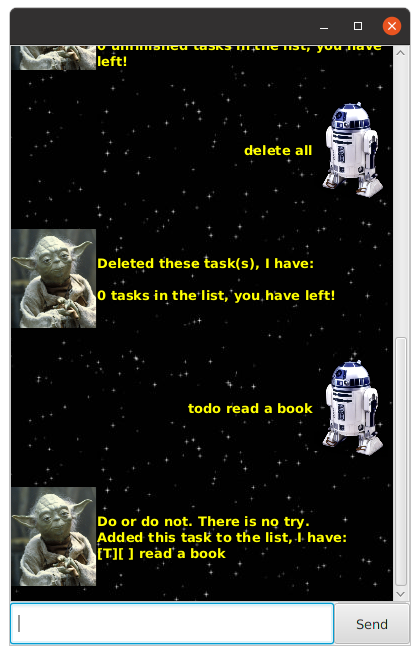
-
Type the command in the command box and press Enter to execute it.
Some example commands you can try:help: Shows all available commands.list: Lists all tasks in the task list.todo read a book: Adds a ToDo task calledread a bookto the list of tasks.done 1: Marks the 1st task on the task list as done.delete 1: Deletes the 1st task on the task list.bye: Exits the app.
Features
Notes about the command format:
- Words in
UPPER_CASEare the parameters to be supplied by the user.
e.g. intodo TASK_DESC,TASK_DESCis a parameter which can be used astodo read a book. - Items in square brackets are optional.
e.g. inlist [TASK_FILTER]can be used aslistorlist -t. - A slash gives user a choice between the options available.
e.g. indelete INDEXES \ all, user has a choice to eitherdelete 1ordelete all.
Viewing help : help
Shows a list of commands available to the user.
Format: help
Adding a task :
There are three types of tasks that can be added:
ToDo : todo
ToDos are for tasks without any date/time attached to them.
Format: todo TASK_DESC
Examples:
todo read a booktodo go to the bank
Event : event
Events are for tasks that occur at a specific date and time.
Format: event TASK_DESC /at YYYY-MM-DD HHMM
Examples:
event group meeting /at 2021-03-21 1200event birthday party /at 2021-03-13 1700
Deadline : deadline
Deadlines are for tasks that need to be done before a specific date and time.
Format: deadline TASK_DESC /by YYYY-MM-DD HHMM
Examples:
deadline finish project /by 2021-04-10 0000deadline finish quiz /by 2021-03-09 2359
Listing tasks : list
Shows a list of all or specific types of tasks in the task list.
Format: list [-t / -d / -e]
listlists all the tasks in the task list.list -tlists all the todos in the task list.list -elists all the events in the task list.list -dlists all the deadlines in the task list.
Locating task by keyword : find
Finds tasks whose descriptions contain the given keyword.
Format: find KEYWORD
- The search is case-insensitive.
Examples:
find book
Marking task(s) as done: done
Marks the specified task(s) in the task list as done.
Format: done INDEXES / all
done allcan be used to mark all tasks as done orINDEXEScan be used to specify tasks.INDEXEScan be just one index or multiple indexes.- Marks the task(s) at the specified
INDEXESas done.
Examples:
done 1done 1 3 5done all
Deleting task(s) : delete
Deletes the specified task(s) in the task list.
Format: delete INDEXES / all
delete allcan be used to delete all tasks orINDEXEScan be used to specify tasks.INDEXEScan be just one index or multiple indexes.- Deletes the tasks(s) at the specified
INDEXES.
Examples:
delete 1delete 2 4 6delete all
Exiting the program : bye
Exits the program.
Format: bye
Saving the data
Task list data is saved automatically after any command that changes the data. There is no need to save manually.
Command summary
| Action | Format, Examples |
|---|---|
| Help | help |
| ToDo | todo TASK_DESC e.g., todo read a book |
| Deadline | deadline TASK_DESC /by YYYY-MM-DD HHMMe.g., deadline finish quiz /by 2021-03-09 2359 |
| Event | event TASK_DESC /at YYYY-MM-DD HHMMe.g., event birthday party /at 2021-03-13 1700 |
| List | list [-t / -d / -e]e.g., list or list -e |
| Find | find KEYWORDe.g., find book |
| Done | done INDEXES / alle.g., done 2 4 or done all |
| Delete | delete INDEXES / alle.g., delete 3 5 or delete all |
| Bye | bye |